

Web
Kodine in the browser.
Kodine also runs as a web app in your browser — the same AI coding experience, no terminal required.
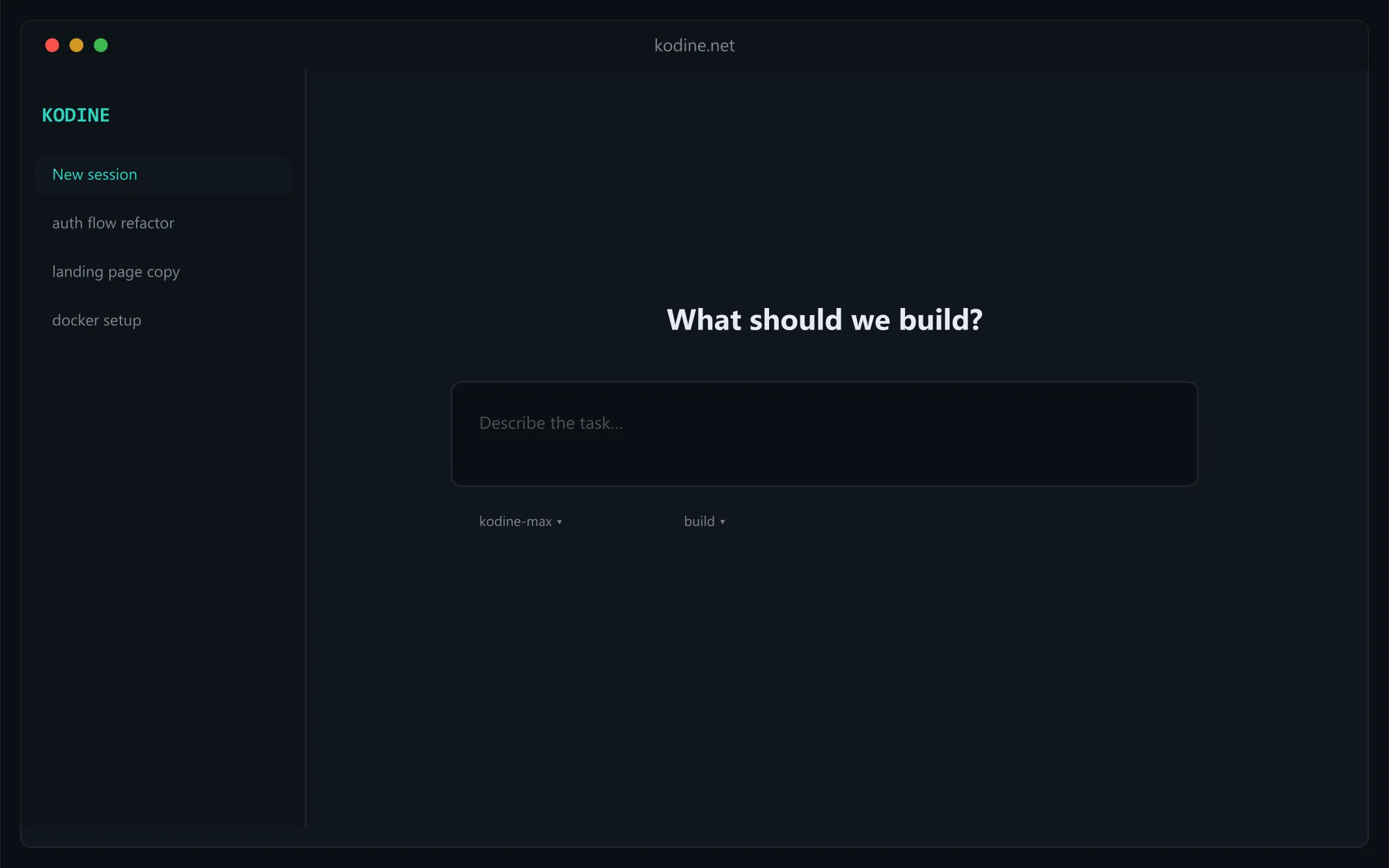
Getting Started
Launch the web interface with:
kodine webThat spins up a local server bound to 127.0.0.1 on a random free port and opens Kodine in your default browser.
Configuration
The web server is configurable through command line flags or your config file.
Port
Kodine picks a free port by default; choose one yourself with:
kodine web --port 4096Hostname
The server binds to 127.0.0.1 by default, meaning localhost only. Expose Kodine to your network with:
kodine web --hostname 0.0.0.0With 0.0.0.0, Kodine prints both the local and network addresses:
Local access: http://localhost:4096 Network access: http://192.168.1.100:4096mDNS Discovery
Turn on mDNS so other devices on the local network can discover your server:
kodine web --mdnsThis sets the hostname to 0.0.0.0 for you and announces the server as kodine.local.
Give the mDNS domain a custom name when running several instances on one network:
kodine web --mdns --mdns-domain myproject.localCORS
Allow extra domains through CORS (handy for custom frontends):
kodine web --cors https://example.comAuthentication
Lock access down with a password via the KODINE_SERVER_PASSWORD environment variable:
KODINE_SERVER_PASSWORD=secret kodine webThe username is kodine unless changed through KODINE_SERVER_USERNAME.
Using the Web Interface
After startup, the web interface gives you access to your Kodine sessions.
Sessions
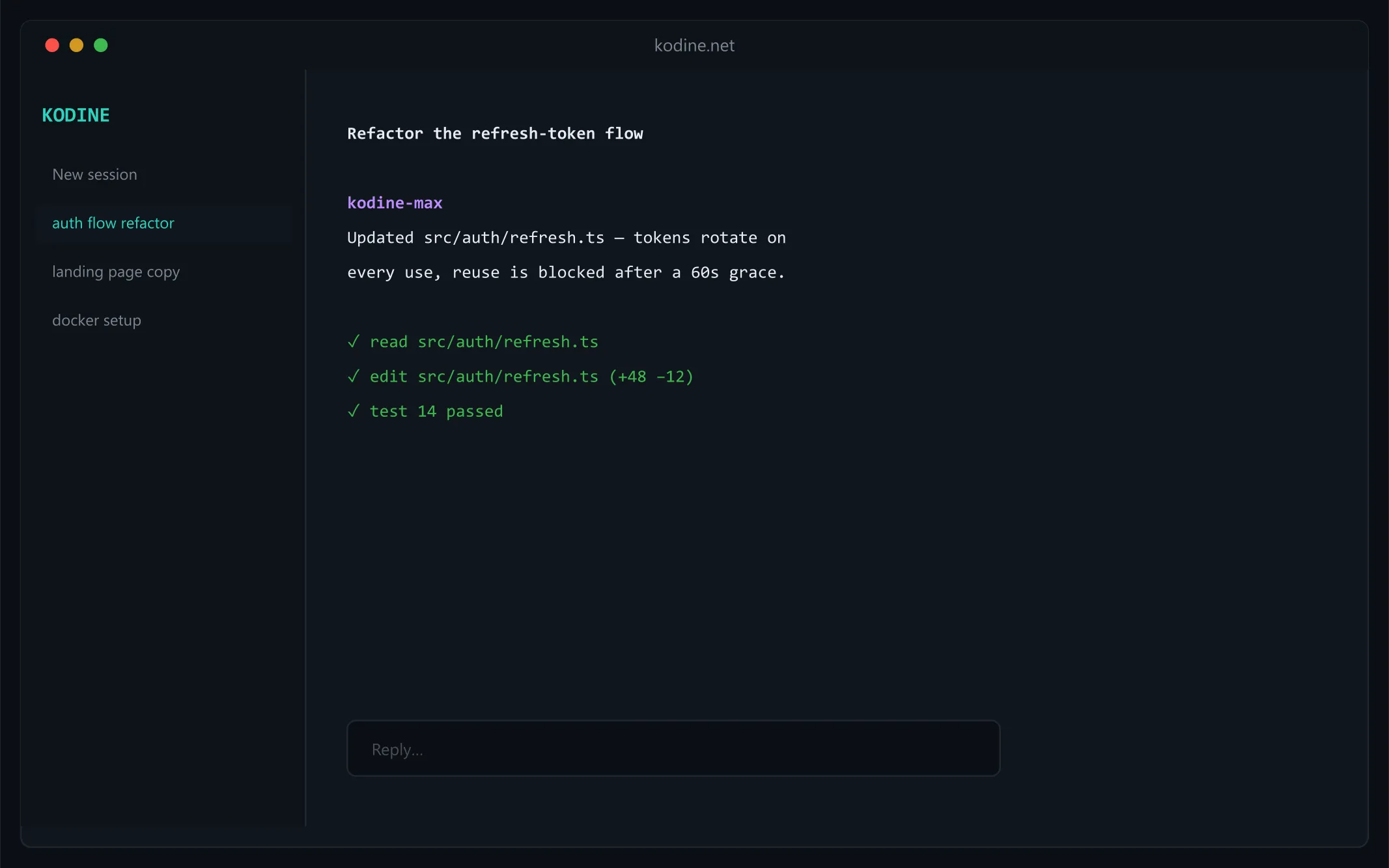
The homepage is where you view and manage sessions — see what’s active, start something new.
Server Status
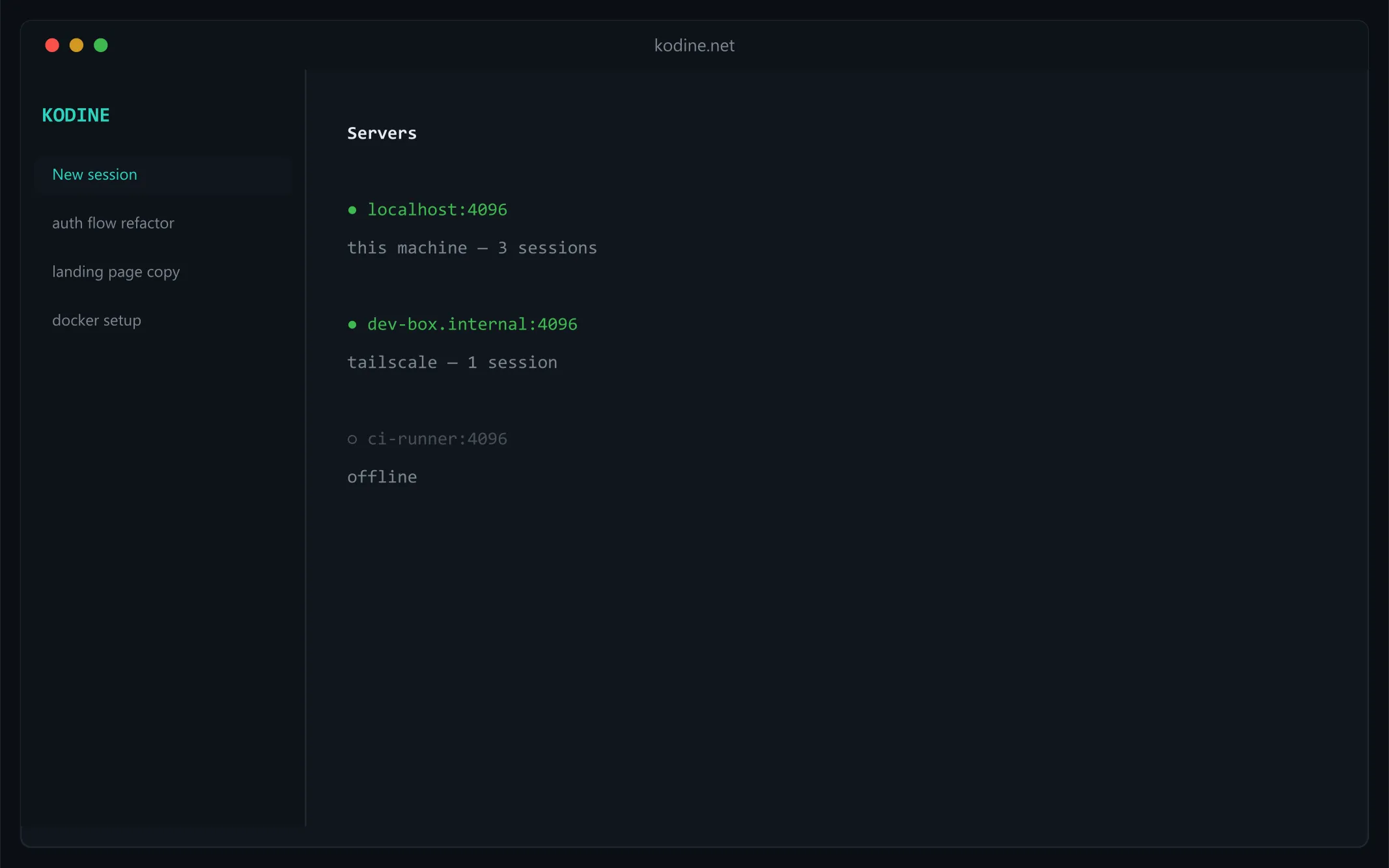
“See Servers” shows the connected servers and how they’re doing.
Attaching a Terminal
A terminal TUI can attach to an already-running web server:
# Start the web serverkodine web --port 4096
# In another terminal, attach the TUIkodine attach http://localhost:4096
That way the web interface and terminal run side by side on the same sessions and state.
Config File
Server settings can also live in your kodine.json config file:
{ "server": { "port": 4096, "hostname": "0.0.0.0", "mdns": true, "cors": ["https://example.com"] }}Where both are set, command line flags win over config file values.